Try the flow
Press to record.
Review the notes.
Interactive illustration · no microphone access, recording or real task creation.
- Ready
- Recording
- Processing
- Review
- Done
Step 1 of 5
Start with a meeting.
After installing 1Press and setting the button to Recording, you are ready to begin.
Example app screens. Processing time varies.
See setup and both button modes
Concept case · setup required
Try the flow
Press to record.
Review the notes.
Interactive illustration · no microphone access, recording or real task creation.
- Ready
- Recording
- Processing
- Review
- Done
Step 2 of 5
Keep talking.
The press opens 1Press and starts recording. Press again when you are finished.
Example app screens. Processing time varies.
See setup and both button modes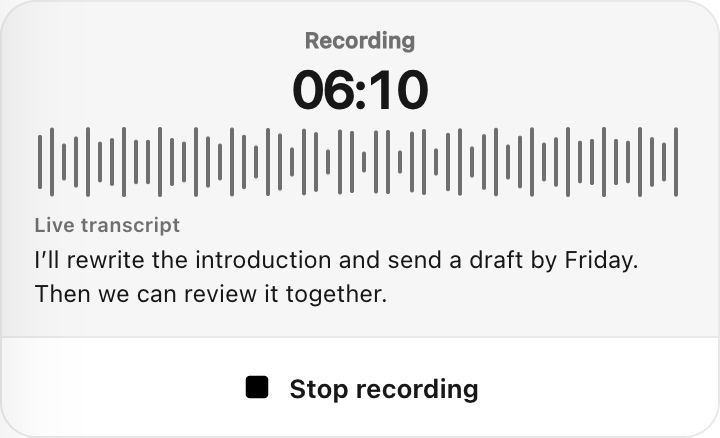
Recording state illustration · not live
Try the flow
Press to record.
Review the notes.
Interactive illustration · no microphone access, recording or real task creation.
- Ready
- Recording
- Processing
- Review
- Done
Step 3 of 5
Recording saved. Notes next.
The recording is saved. Transcription and AI notes need processing time. This walkthrough advances manually and does not represent actual speed.
Example app screens. Processing time varies.
See setup and both button modesPreparing transcript
and AI notes
No processing is running in this demo.
Choose “Preview the result” to continue.
Try the flow
Press to record.
Review the notes.
Interactive illustration · no microphone access, recording or real task creation.
- Ready
- Recording
- Processing
- Review
- Done
Step 4 of 5
Review the notes and follow-ups.
Read the transcript and AI notes. Suggested action items are yours to review before adding them to Tasks.
Example app screens. Processing time varies.
See setup and both button modes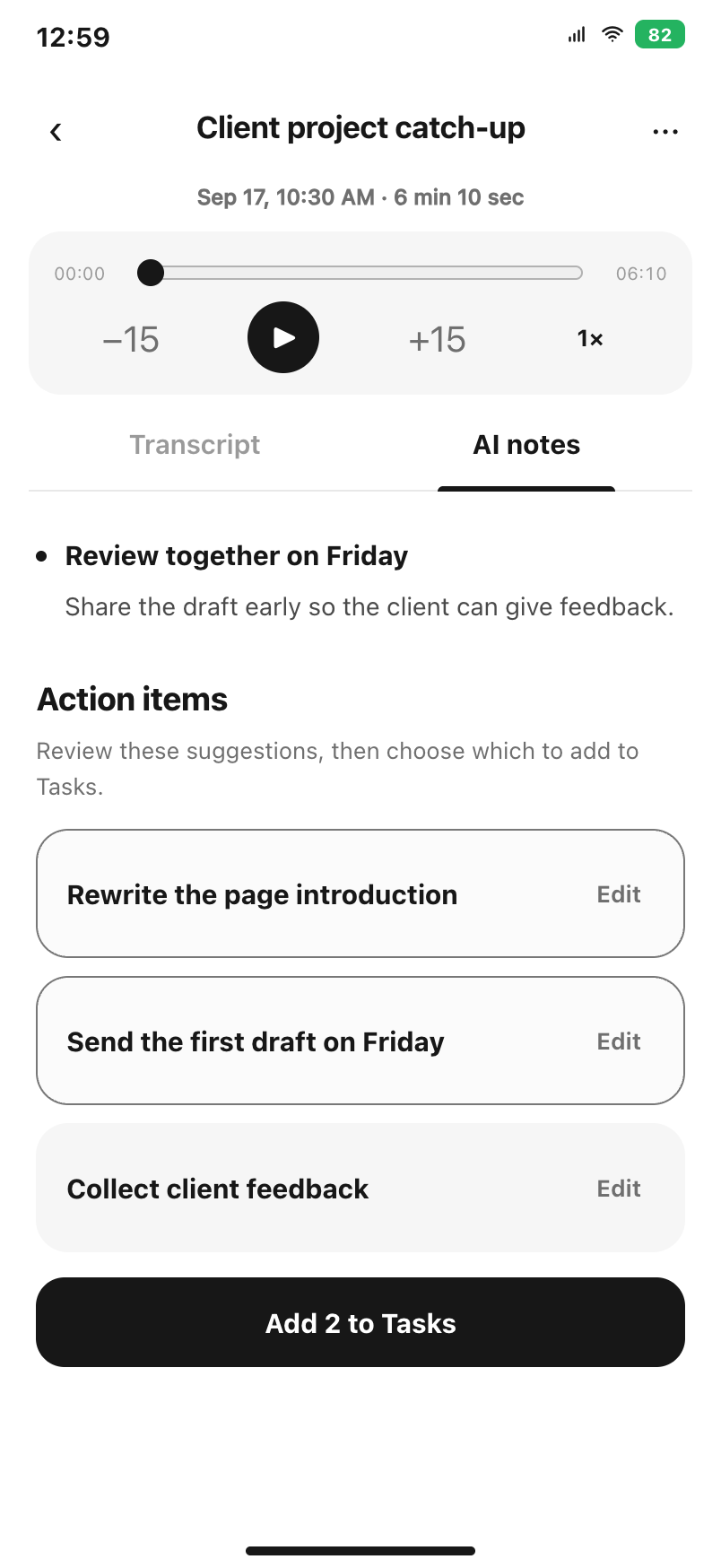
Example result
Try the flow
Press to record.
Review the notes.
Interactive illustration · no microphone access, recording or real task creation.
- Ready
- Recording
- Processing
- Review
- Done
Step 5 of 5
Your follow-ups, in Tasks.
Example action items added in this walkthrough. In the app, you choose and confirm what to save.
Example app screens. Processing time varies.
See setup and both button modes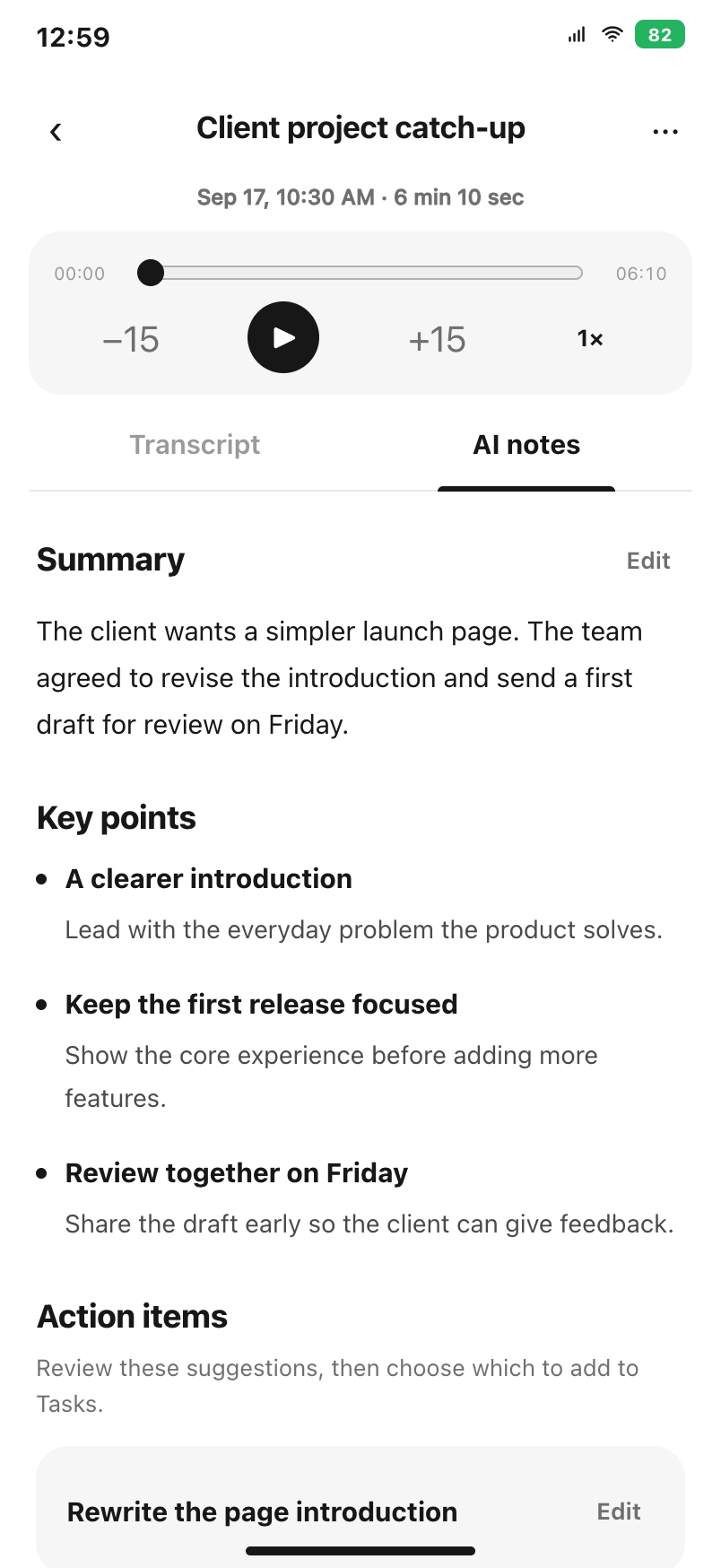
Example result